PCmover is an in-place upgrade solution for Windows users. Its purpose is to basically help you make the transition from an earlier version of the operating system to the latest, Windows 7. Unlike the solution offered by Microsoft itself, which has been labeled as quirky and limited right from the start for the average user, PCmover can help you migrate installed programs as well as well as Windows settings and files
With XP still making for a huge chunk of the OS market share pie, there are plenty of users ready to start working on the new operating system. And with the adoption rate of Windows 7 constantly growing - Microsoft actually boasts with 400+ million copies sold since its release in 2009 and with selling seven copies each second – massive transitioning from XP is inevitable.
You can do this through a clean installs which wipes everything on the system drive and allows you to start anew with Windows 7, which requires you to re-install all the programs you need. Or you can try to preserve the settings of the old operating system by appealing to Windows Easy Transfer.
Another solution is to migrate all the programs, OS settings and files to Windows 7 altogether in a single move. And this is a job for PCmover Professional.
Capture Windows XP data:
The application is available for a hefty price, $59.95, taking into consideration that you don’t get to use it too often. Installation does not take too long to complete, but you have to keep an eye on third party software Laplink has a partnership with, and which may sneak onto your system.
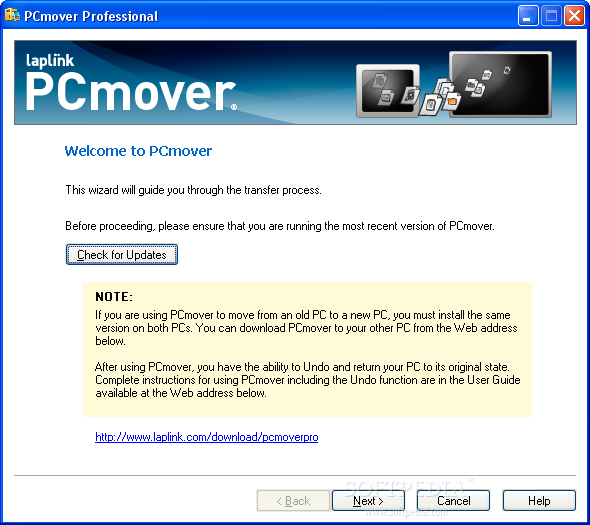
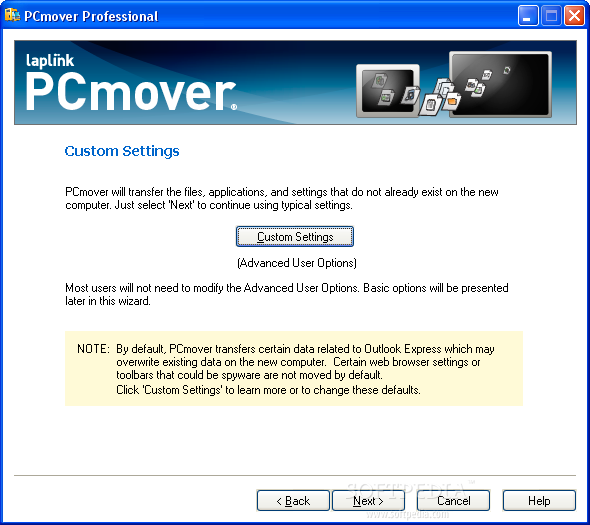
Even if PCmover engages into a pretty difficult task, handling its options is a cakewalk. The developer built its interface as a wizard guide so that beginner users and professionals can enjoy the same simplicity.
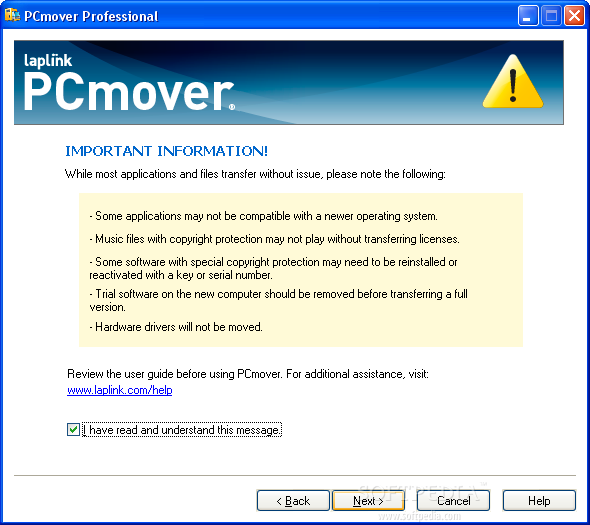
Each screen brings in bits of information according to the choices you make, so that you are aware at all times of the limitations of the application as well as the possibilities it offers. Keep into account that not all software running on XP may be compatible with Windows 7. Also, some of the settings on the old OS are not present on the newer one and that the new customization options need to be addressed in order to fully benefit of the Windows 7 experience.
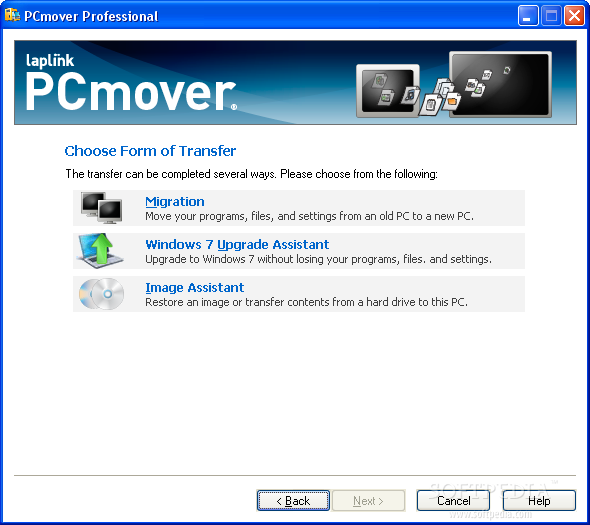
PCmover puts at your disposal three choices, which let you transfer data between two different computers, perform an upgrade of a single system or just capture all the settings, files and apps into an image which can be restored to any computer with PCmover installed, at any time you wish.
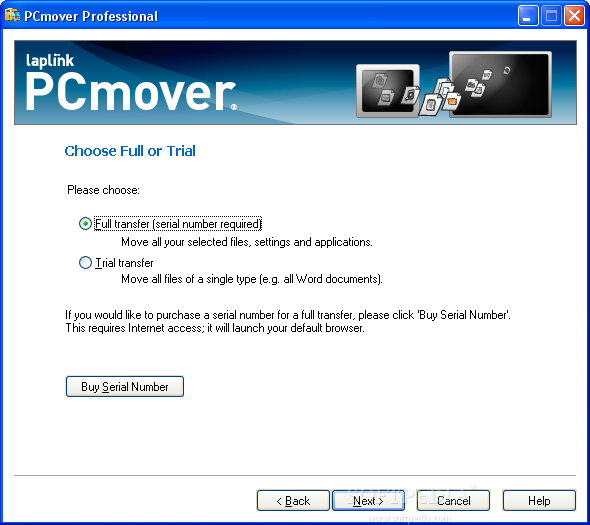
As mentioned earlier, this program is among the very few that can perform a full transfer of settings, files and applications. However, this is limited in the trial version, which lets you move only files of a specific type.
A full migration job from XP to Windows 7 on the same system can be carried out in two ways; one of them involves keeping the data of the old OS and use PCmover to create a “map” of the files that need to be transferred once Windows 7 is running.
The other solution is to use PCmover to create a compressed image of all the needed data and perform a clean install of Windows 7. But regardless of the method you choose the results should be impressive considering the time distance between the two OSs and the differences. Not everything was ported to the new OS during our testing, but the essential data we needed was available.
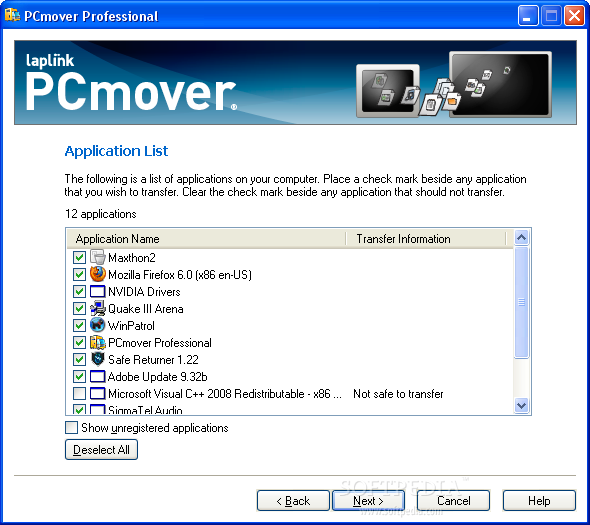
The application detects all user accounts automatically, as well as the applications installed on the system. Additionally, you can instruct it to include specific drives in the transfer. Depending on the migration choice, all the data can be compressed into an image - which could take a while to complete. In the case of an upgrade PCmover will compress only a small file, which contains instructions on the data that has to be moved to the new OS, since everything is stored in the “Windows.old” folder.
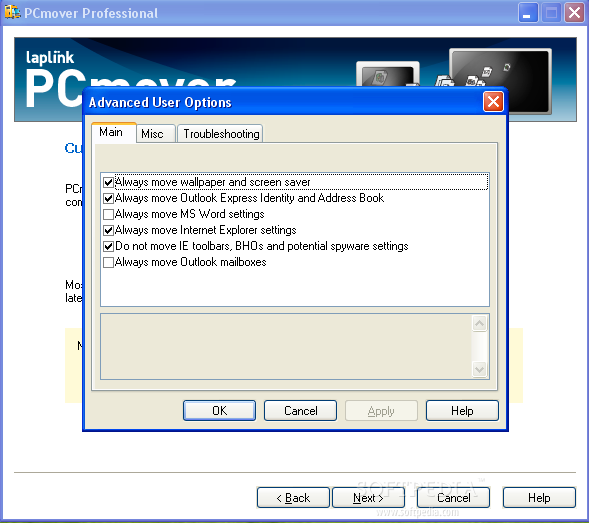
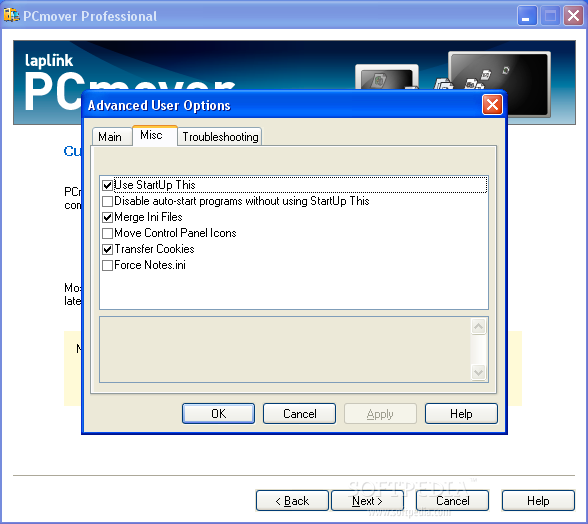
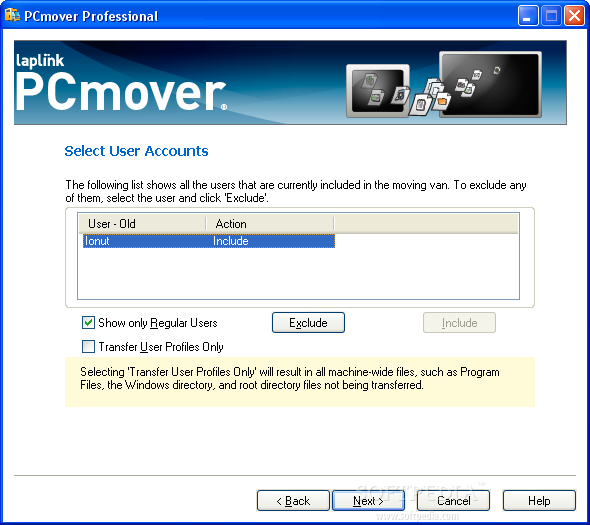
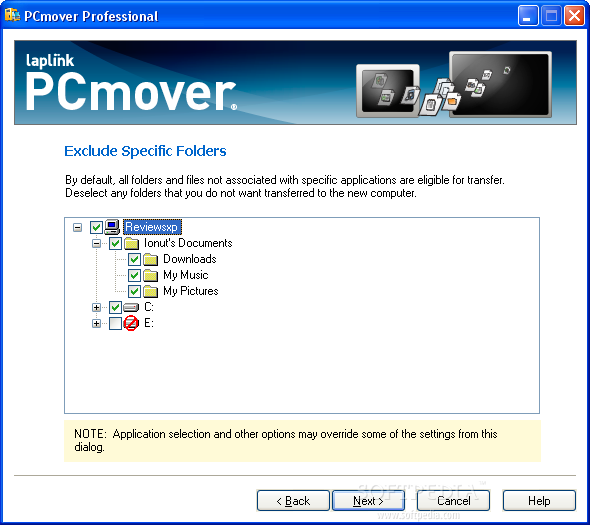
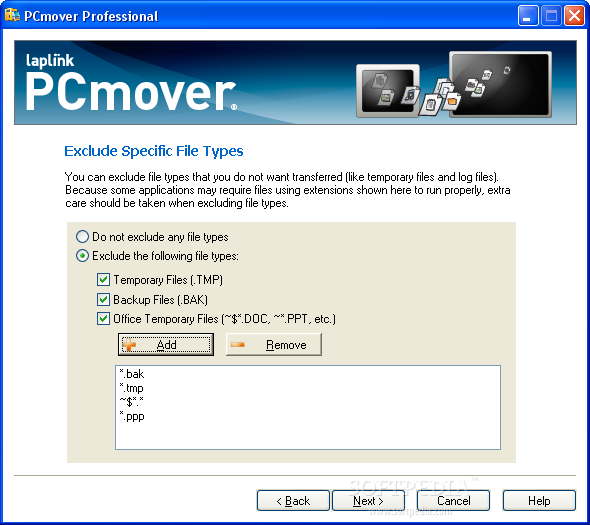
There aren’t abundant options to complicate things. Basically, your choices are limited to selecting the apps you want moved, the drives that should be part of the transfer and the user account.
Breathing the old life into the new operating system is not too difficult a job, either. You have to install PCmover again and go through the same easy to use, wizard-based interface. Things are pretty clear since the developer made sure to clearly indicate the options at hand before and after the upgrade, for the old and the new computer.
Our tests included both an upgrade from XP to Windows 7 as well as clean installation of the new operating system. As expected, not all tweaks in the old operating system were transferred to the fresh environment, since the differences were pretty steep.
Restore Windows XP data to Windows 7:
It was a bit uncanny to see the original XP desktop background plastered onto Windows 7 workspace. Our custom screensaver was also preserved, as well as our option to keep automatic updating off. However, even if we chose to turn off the firewall, to auto-hide the taskbar or to view hidden files and folders, none of it was kept.
On the upside, all installed applications were successfully transferred to Windows 7 and we benefited from all items originally placed on XP’s desktop.
Although it could not transfer everything because of the big differences between the two operating systems, PCmover did an awesome job getting all compatible programs onto Windows 7. We tried it with a few games, web browsers and even security programs and encountered no issues on the upgraded system.
The Good
The wizard-based interface makes it extremely easy to choose the applications, system settings and files. When listing the programs it detected on the system it also informs which are safe to transfer.
You can use it for in-place upgrade as well as simply transfer all the files and settings from one computer to another. The migration options available fit the needs of any user and the data can be stored on various storage devices, from CDs and DVDs to portable drives or network locations.
The Bad
The price may be seen as major drawback. There is no built-in security solution to make sure that you do not transfer malicious items to the new environment.
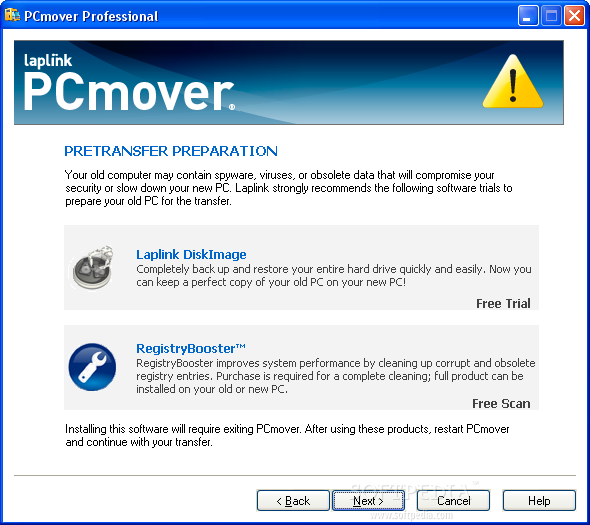
You will find in the wizard plenty of references to other tools from the developer, which disrupts the process of going through the migration steps.
The Truth
PCmover will not transfer every setting from XP to Windows 7 and you will still have to make some tweaking of your own; but it will bring installed applications onto the new operating system, sparing you the hassle of reinstallation and configuring them.
On the other hand, you can use it to switch to a different machine equipped with the same OS, without losing any of your files and settings.
Regardless of the migration method you choose PCmover will carry out the job in the minimum time possible. This also depends on the amount of data it has to deal with.
You can do this through a clean installs which wipes everything on the system drive and allows you to start anew with Windows 7, which requires you to re-install all the programs you need. Or you can try to preserve the settings of the old operating system by appealing to Windows Easy Transfer.
Another solution is to migrate all the programs, OS settings and files to Windows 7 altogether in a single move. And this is a job for PCmover Professional.
Capture Windows XP data:
 |  |  |  |
The application is available for a hefty price, $59.95, taking into consideration that you don’t get to use it too often. Installation does not take too long to complete, but you have to keep an eye on third party software Laplink has a partnership with, and which may sneak onto your system.
Even if PCmover engages into a pretty difficult task, handling its options is a cakewalk. The developer built its interface as a wizard guide so that beginner users and professionals can enjoy the same simplicity.
Each screen brings in bits of information according to the choices you make, so that you are aware at all times of the limitations of the application as well as the possibilities it offers. Keep into account that not all software running on XP may be compatible with Windows 7. Also, some of the settings on the old OS are not present on the newer one and that the new customization options need to be addressed in order to fully benefit of the Windows 7 experience.
 | 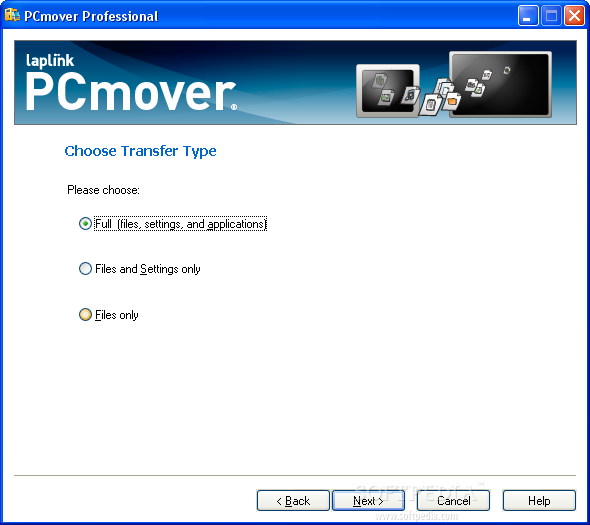 |  |  |  |
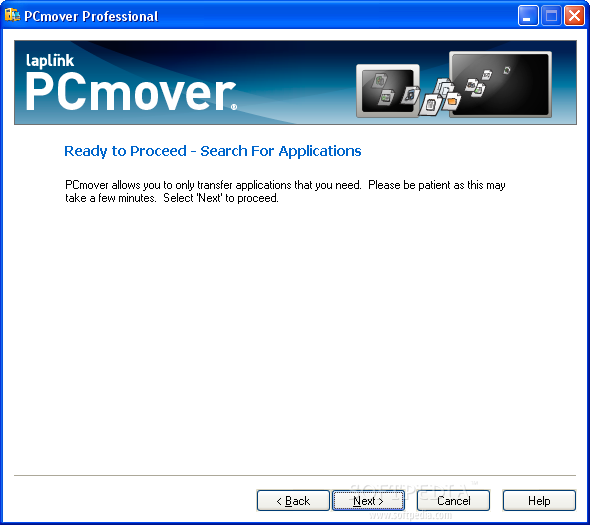
PCmover puts at your disposal three choices, which let you transfer data between two different computers, perform an upgrade of a single system or just capture all the settings, files and apps into an image which can be restored to any computer with PCmover installed, at any time you wish.
As mentioned earlier, this program is among the very few that can perform a full transfer of settings, files and applications. However, this is limited in the trial version, which lets you move only files of a specific type.
 |  |  |  |
A full migration job from XP to Windows 7 on the same system can be carried out in two ways; one of them involves keeping the data of the old OS and use PCmover to create a “map” of the files that need to be transferred once Windows 7 is running.
The other solution is to use PCmover to create a compressed image of all the needed data and perform a clean install of Windows 7. But regardless of the method you choose the results should be impressive considering the time distance between the two OSs and the differences. Not everything was ported to the new OS during our testing, but the essential data we needed was available.
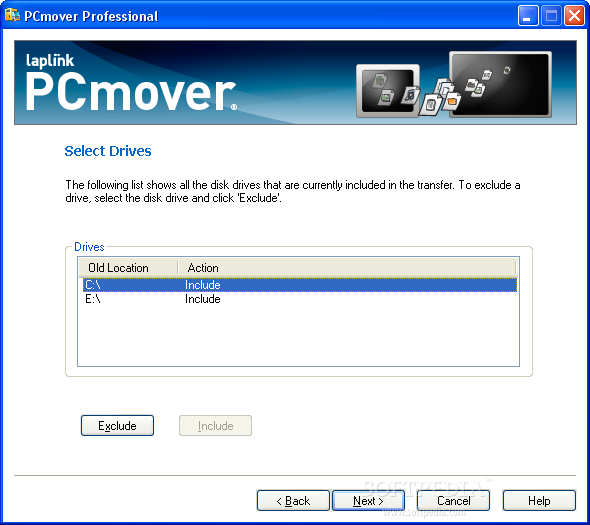 |  |  | 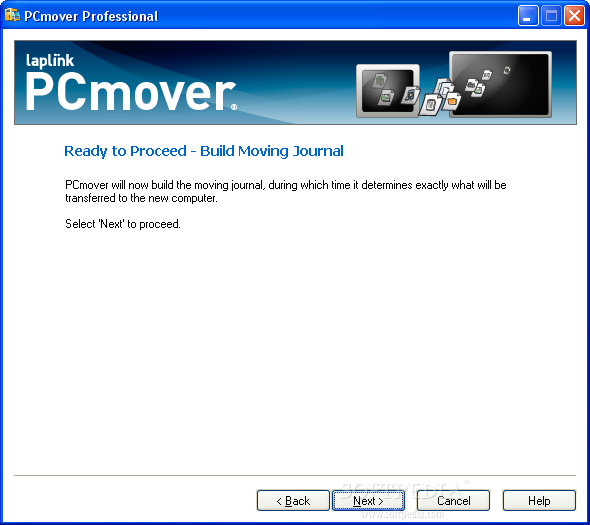 | 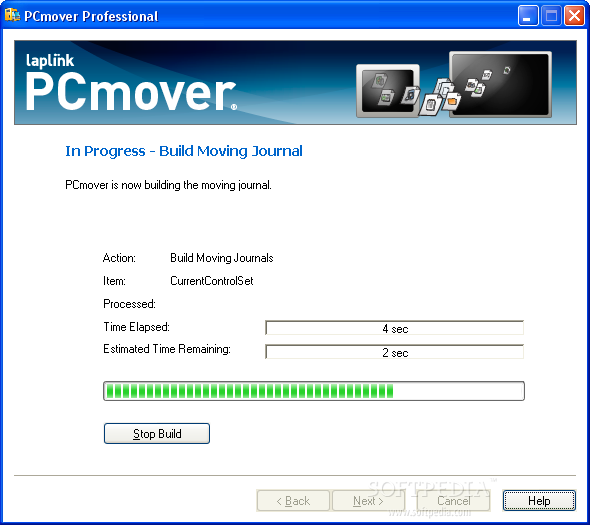 |
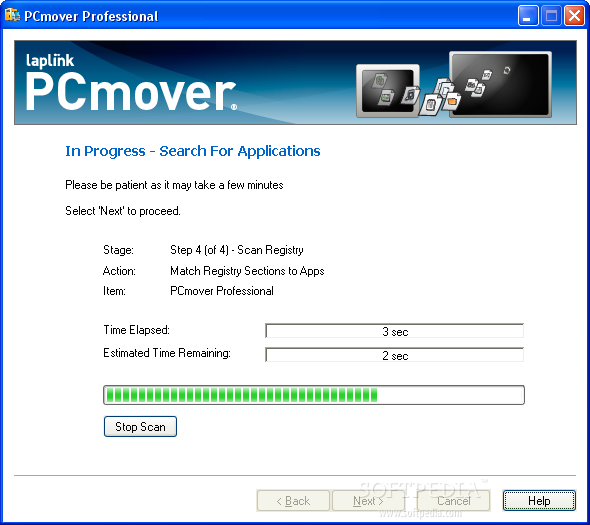
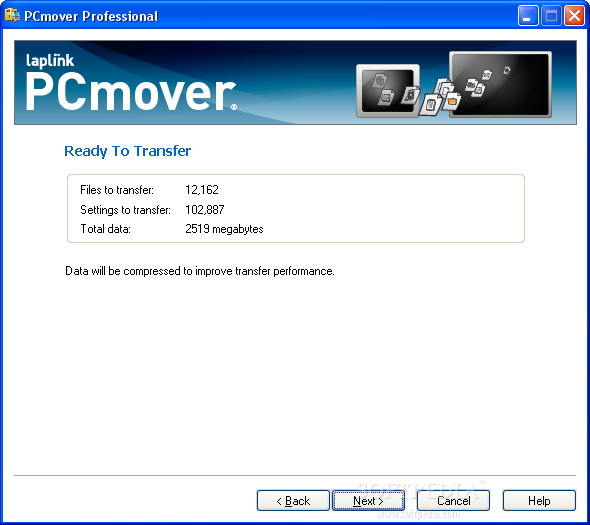
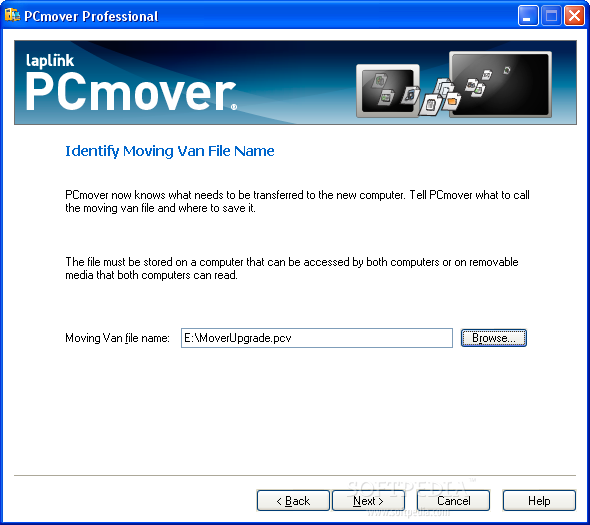
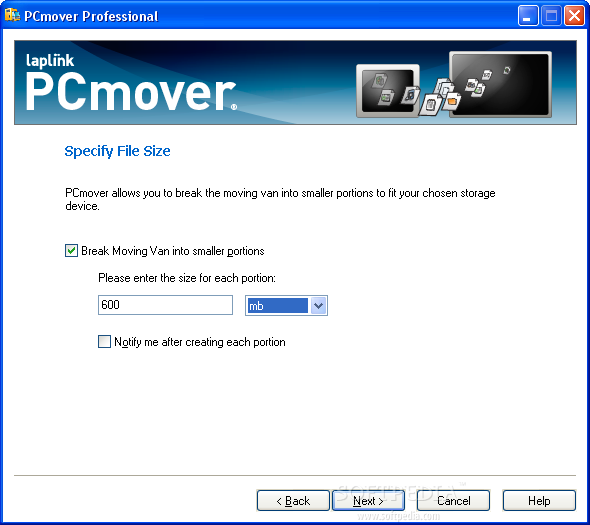
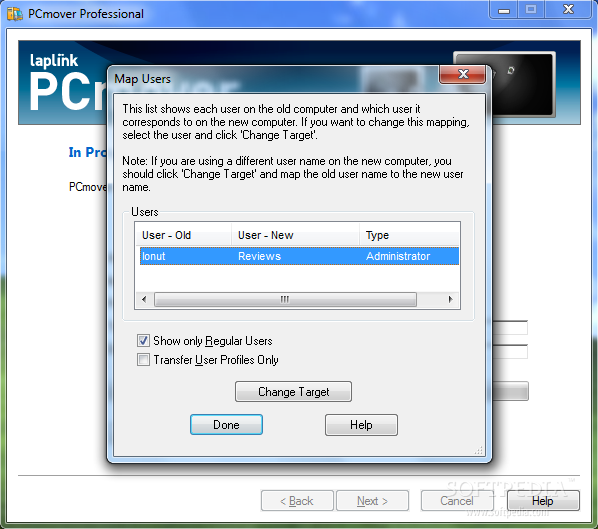
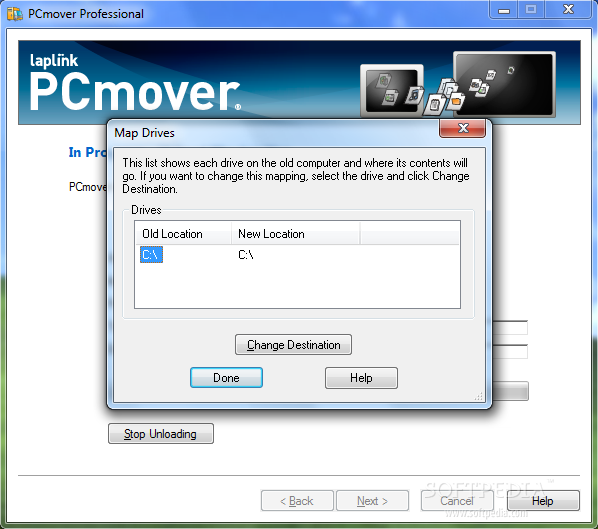
The application detects all user accounts automatically, as well as the applications installed on the system. Additionally, you can instruct it to include specific drives in the transfer. Depending on the migration choice, all the data can be compressed into an image - which could take a while to complete. In the case of an upgrade PCmover will compress only a small file, which contains instructions on the data that has to be moved to the new OS, since everything is stored in the “Windows.old” folder.
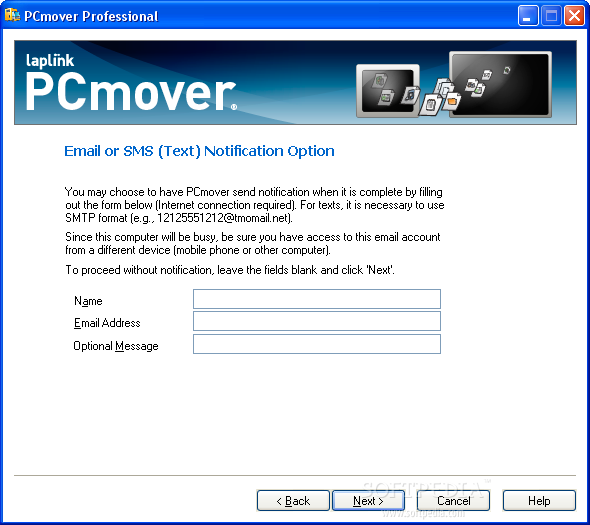
There aren’t abundant options to complicate things. Basically, your choices are limited to selecting the apps you want moved, the drives that should be part of the transfer and the user account.
 |  |  |  |
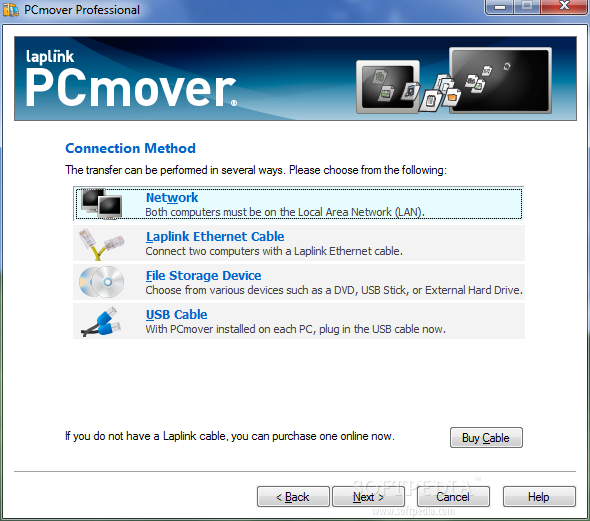
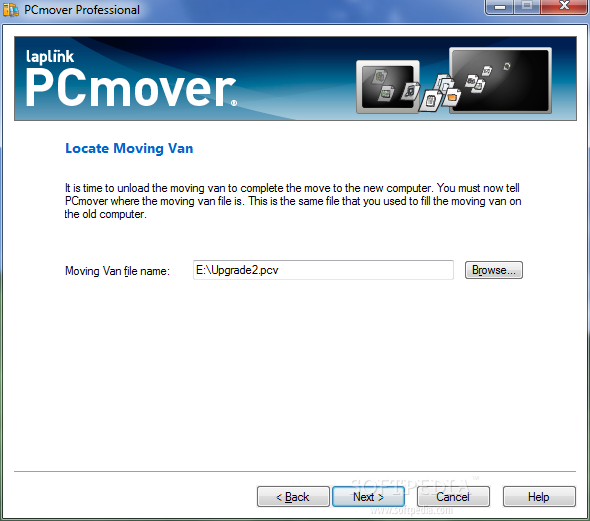
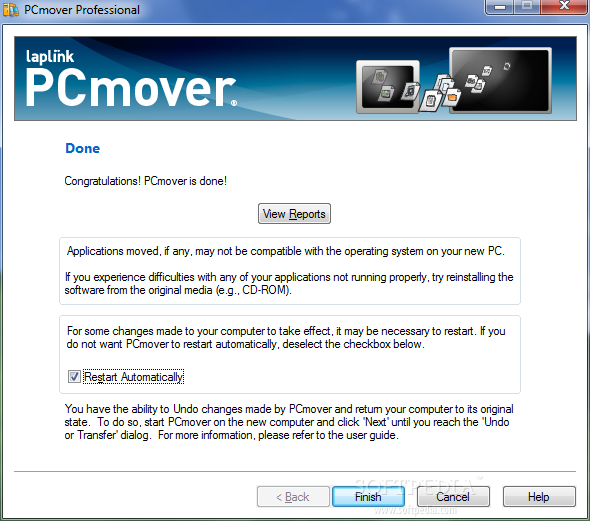
Breathing the old life into the new operating system is not too difficult a job, either. You have to install PCmover again and go through the same easy to use, wizard-based interface. Things are pretty clear since the developer made sure to clearly indicate the options at hand before and after the upgrade, for the old and the new computer.
Our tests included both an upgrade from XP to Windows 7 as well as clean installation of the new operating system. As expected, not all tweaks in the old operating system were transferred to the fresh environment, since the differences were pretty steep.
Restore Windows XP data to Windows 7:
 |  | 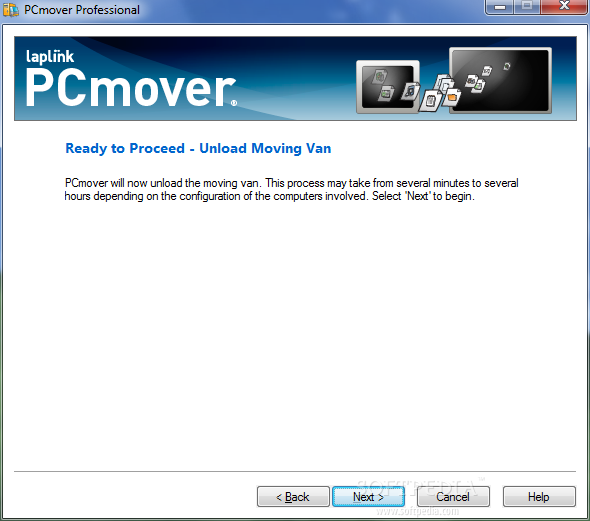 |
It was a bit uncanny to see the original XP desktop background plastered onto Windows 7 workspace. Our custom screensaver was also preserved, as well as our option to keep automatic updating off. However, even if we chose to turn off the firewall, to auto-hide the taskbar or to view hidden files and folders, none of it was kept.
On the upside, all installed applications were successfully transferred to Windows 7 and we benefited from all items originally placed on XP’s desktop.
Although it could not transfer everything because of the big differences between the two operating systems, PCmover did an awesome job getting all compatible programs onto Windows 7. We tried it with a few games, web browsers and even security programs and encountered no issues on the upgraded system.
 |  |  |
The Good
The wizard-based interface makes it extremely easy to choose the applications, system settings and files. When listing the programs it detected on the system it also informs which are safe to transfer.
You can use it for in-place upgrade as well as simply transfer all the files and settings from one computer to another. The migration options available fit the needs of any user and the data can be stored on various storage devices, from CDs and DVDs to portable drives or network locations.
The Bad
The price may be seen as major drawback. There is no built-in security solution to make sure that you do not transfer malicious items to the new environment.
You will find in the wizard plenty of references to other tools from the developer, which disrupts the process of going through the migration steps.
The Truth
PCmover will not transfer every setting from XP to Windows 7 and you will still have to make some tweaking of your own; but it will bring installed applications onto the new operating system, sparing you the hassle of reinstallation and configuring them.
On the other hand, you can use it to switch to a different machine equipped with the same OS, without losing any of your files and settings.
Regardless of the migration method you choose PCmover will carry out the job in the minimum time possible. This also depends on the amount of data it has to deal with.